Hosting Jellyfin Locally with Docker Compose
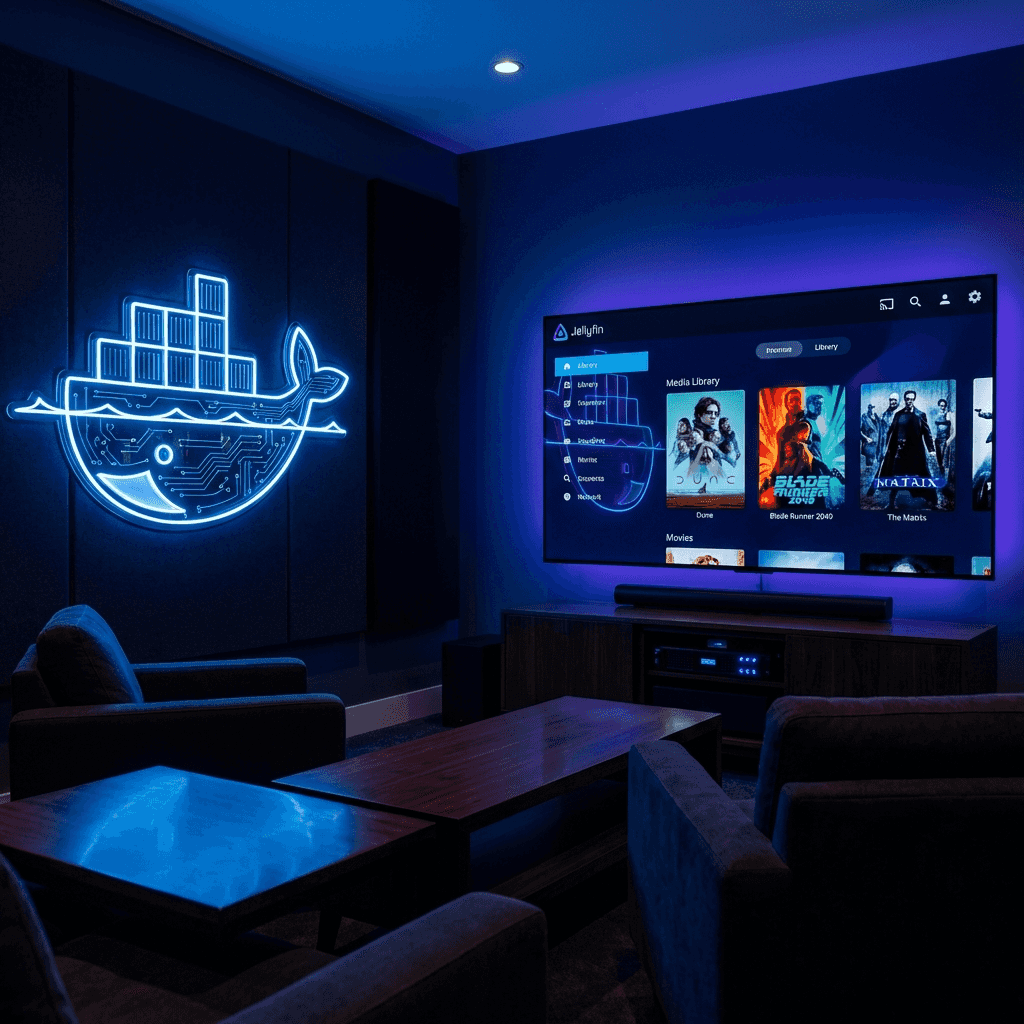
Intro
Streaming services are great, but they come with monthly fees and the risk of content disappearing. Jellyfin is a powerful, free, and open-source alternative that lets you host your own media library. In this guide, I’ll show you how to set up Jellyfin locally using Docker Compose and, crucially, how to organize your media files on an external hard drive.
Prerequisites:
- A computer capable of running Docker.
- Docker installed.
- An external hard drive for your media.
- Basic familiarity with the command line.
Why Jellyfin?
Jellyfin is the volunteer-built media solution that puts you in control of your entertainment. Unlike some competitors, it has no premium features locked behind a paywall. It provides a beautiful interface for your movies, TV shows, and music, accessible from almost any device in your home.
Why Use an External Drive?
Media files take up a lot of space. High-quality 4K movies can easily be 50GB or more. Keeping these on your primary system drive can quickly lead to storage issues. Using an external drive allows you:
- Scalability: Easily upgrade to a larger drive if you run out of space.
- Portability: Move your entire library between different machines if needed.
- Organization: Keep your system files and media files physically separate.
Step 1: Prepare Your Media Folders
Before we touch any code, let’s organize the external drive. Connect your drive and create a dedicated folder structure. For example, if your drive is mounted at /Volumes/MediaDrive, you might set it up like this:
/Volumes/MediaDrive/
└── Jellyfin/
    ├── Movies/
    └── TV Shows/
Step 2: Create the Docker Compose File
We’ll use Docker Compose to define our Jellyfin service. Create a new directory for your Jellyfin setup on your computer and create a file named docker-compose.yml inside it.
version: "3.5"
services:
  jellyfin:
    image: jellyfin/jellyfin
    container_name: jellyfin
    user: 501:20 # Adjust to your user ID (run `id -u` and `id -g`)
    network_mode: "host"
    volumes:
      - ./config:/config
      - ./cache:/cache
      - "/Volumes/1TB SSK/Movies:/media/movies:ro"
    restart: "unless-stopped"
    environment:
      - JELLYFIN_LOG_DIR=/cache/log
    # devices:
    #   - /dev/dri:/dev/dri # Optional: For hardware acceleration on Linux
[!IMPORTANT] Change
/Volumes/1TB SSK/Moviesto the actual path of your movies folder on your external drive.
- On Mac: Drives are usually in
/Volumes/- On Linux: Drives are often in
/mnt/or/media/- On Windows: Use the drive letter, e.g.,
D:/MoviesThe
:roat the end means “read-only,” which is a safe way to ensure Jellyfin doesn’t accidentally modify your files.
Step 3: Launching the Server
Open your terminal, navigate to the folder where you saved docker-compose.yml, and run:
docker-compose up -dThis command will download the Jellyfin image and start the container in the background.
Step 4: Initial Configuration
Once the container is running, open your web browser and navigate to http://localhost:8096 (or http://your-ip-address:8096). You’ll be greeted by the Jellyfin setup wizard.
- Language: Select your preferred language.
- User: Create your admin account.
- Libraries: Click “Add Media Library.”
- Select “Movies” as the content type.
- Click the plus sign under “Folders” and navigate to
/media/movies(which is the internal path we mapped in ourdocker-compose.yml).
- Remote Access: Since we are running this locally, you can usually leave these settings at their defaults.
Step 5: Enjoy Your Media!
Jellyfin will now start scanning your folders and downloading metadata (posters, descriptions, cast info). Once finished, you’ll have a Netflix-style interface for your own local collection!
Troubleshooting Tips
- Permissions: If Jellyfin can’t see your files, ensure the user running Docker has permissions to access the external drive.
- Path Issues: Double-check that the host path in your
docker-compose.ymlexactly matches where your drive is mounted. - Network Mode: We used
network_mode: "host"for simplicity, which is often recommended for Jellyfin to handle DLNA and other discovery protocols easily.
Conclusion
Setting up Jellyfin locally is a rewarding project that gives you full ownership of your media collection. By using Docker Compose and an external drive, you create a robust and scalable system that can grow with your library.
Key Takeaways:
- Docker Compose simplifies the setup and maintenance of Jellyfin.
- External Drives are essential for managing large media libraries without cluttering your main system.
- Volume Mapping is the bridge between your physical files and the Jellyfin container.
Now go grab some popcorn and enjoy your self-hosted cinema!
About the author


Written by Nicholas Diesslin Pizza acrobat 🍕, typographer, gardener, bicyclist, juggler, senior developer, web designer, all around whittler of the web.
Follow Nick on Twitter!